


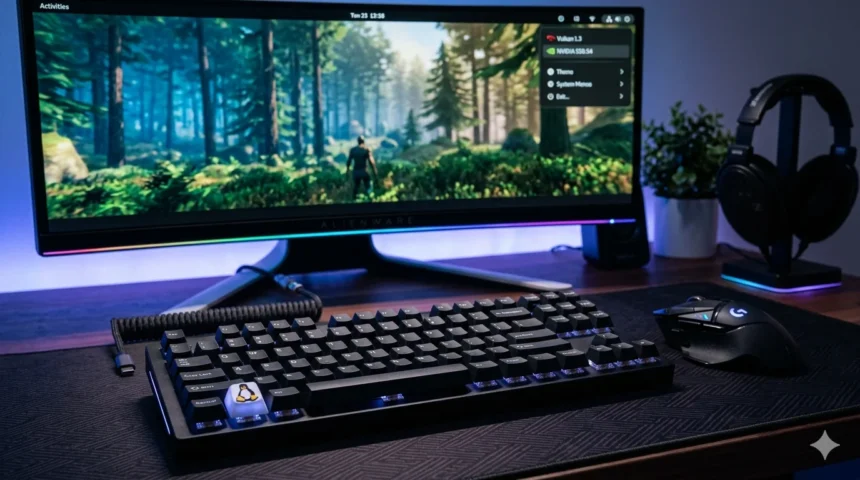
Gaming on Linux has evolved from a niche hobby into a high-performance reality. With the rise of compatibility layers and dedicated driver support, many titles now run as well as or better than they do on other operating systems. Achieving this level of fluid gameplay requires a strategic approach to system configuration and hardware management.
Optimizing a Linux environment involves balancing resource allocation with low-latency software tweaks. By refining your kernel settings, updating graphics stacks, and choosing the right distribution, you can transform a standard desktop into a dedicated gaming powerhouse. This guide provides actionable steps to ensure your setup delivers a smooth, competitive experience.
Choosing the Right Linux Distro for Gaming
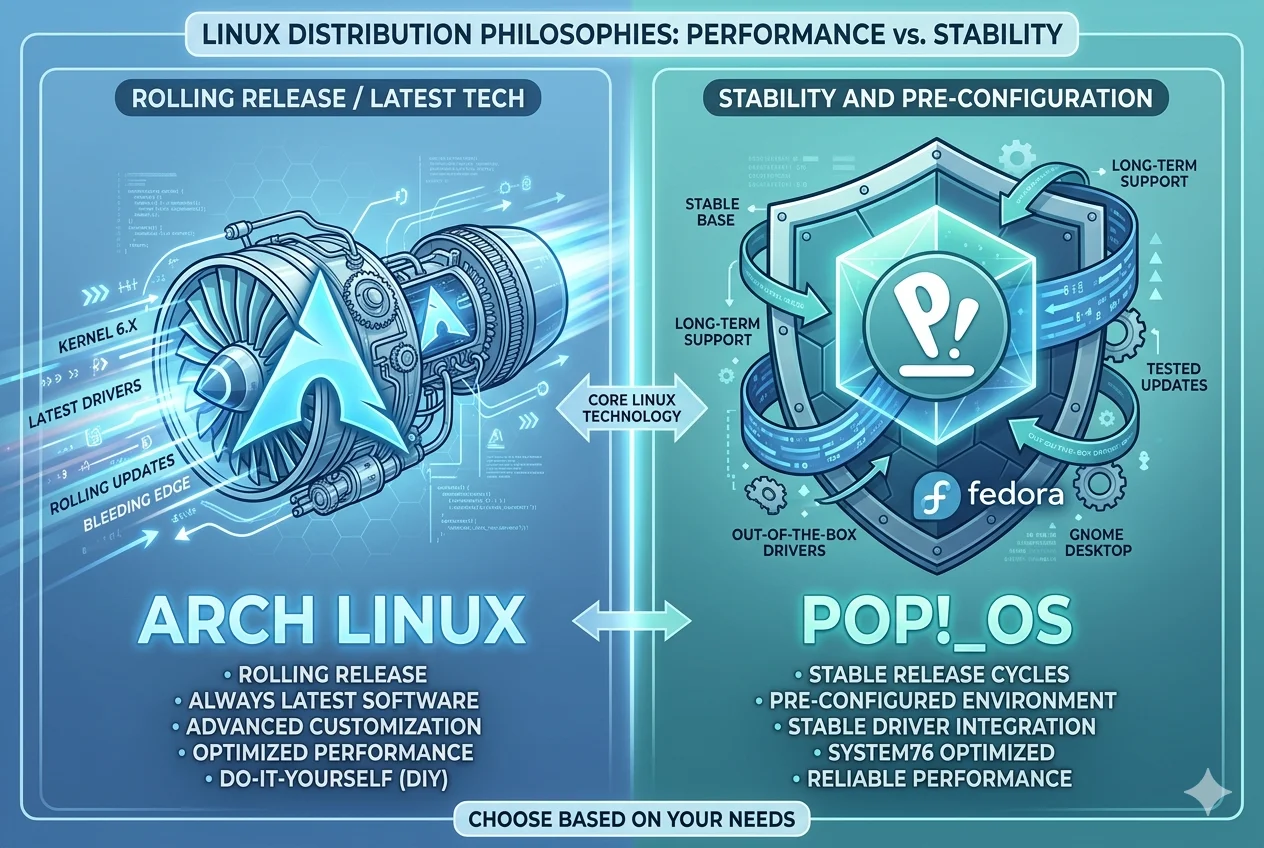
The foundation of a great gaming experience starts with the distribution. While almost any Linux OS can be configured for games, some are built specifically to provide the latest packages and kernels out of the box.
Rolling release distributions, such as Arch Linux or its user-friendly counterparts like EndeavourOS, are highly regarded because they provide the newest versions of Mesa and the Linux kernel. These updates often include critical performance patches for recently released AAA titles.
For those who prefer stability, Fedora Workstation offers a middle ground by providing relatively fresh software while maintaining a rigorous testing standard. Alternatively, specialized gaming distros like Pop!_OS come with pre-configured NVIDIA drivers, making the initial setup seamless for users with dedicated GPUs.
GPU Drivers and the Graphics Stack
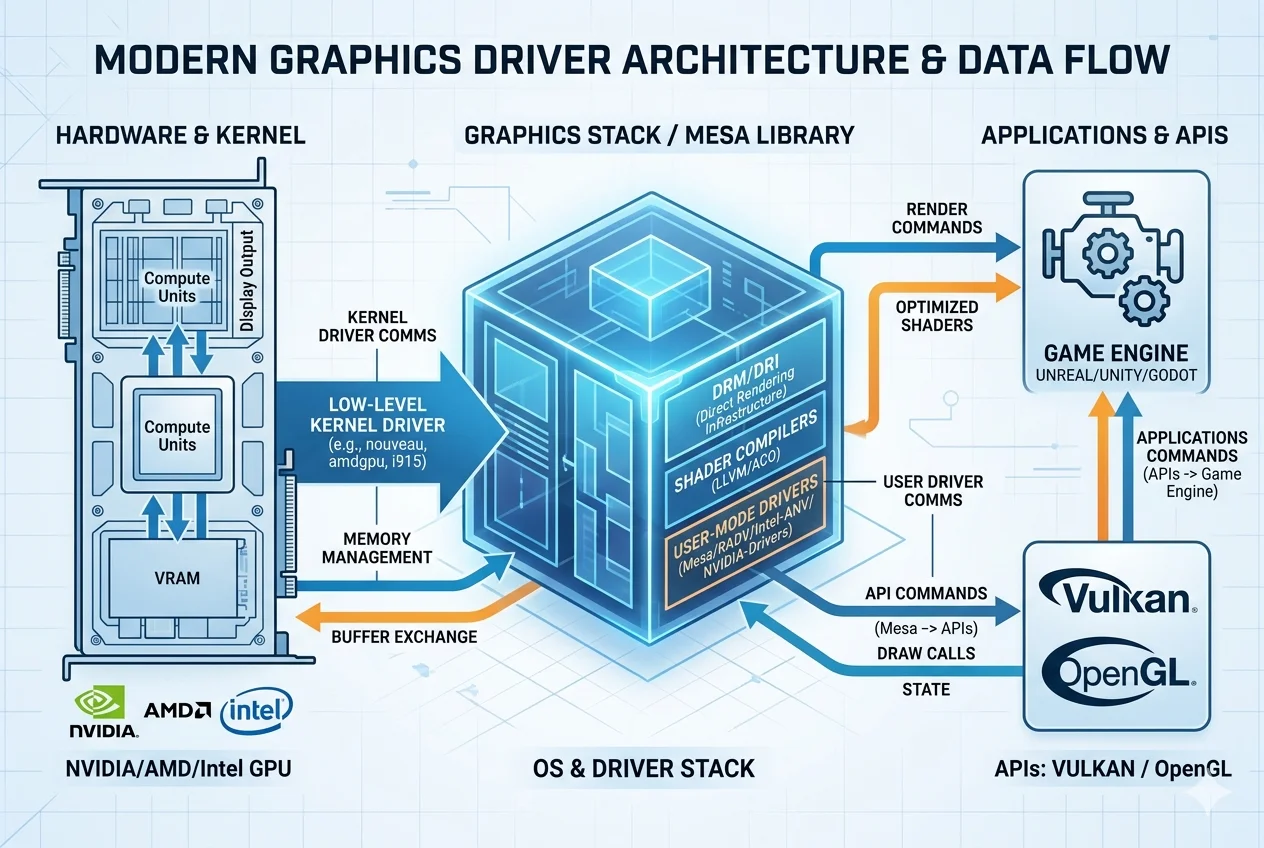
Your graphics card is the heart of your gaming rig, and its performance depends entirely on the drivers you use. The installation process varies significantly depending on whether you use hardware from NVIDIA, AMD, or Intel.
AMD and Intel users benefit from open-source drivers integrated directly into the kernel and the Mesa graphics library. To optimize Linux for gaming on these platforms, ensure you are running a recent version of Mesa. This library handles the translation of API calls like Vulkan and OpenGL, which are essential for modern rendering.
NVIDIA users, however, generally require the proprietary “blob” drivers for maximum performance. While open-source alternatives exist, they often lack the clock-speed management and features needed for intensive gaming. Always verify that your driver version matches the requirements of the games you intend to play, and consider using a PPA or a dedicated repository to stay current.
Kernel and System Tweaks for Low Latency

The Linux kernel manages how your hardware interacts with software. While the default kernel is optimized for general desktop use, gamers often look for gaming tips pblinuxtech-style performance tweaks to prioritize frame timing and reduce input lag.
One of the most effective upgrades is switching to a “Zen” or “Liquorix” kernel. These are tuned for desktop responsiveness and low-latency multitasking. They implement different process scheduling techniques that ensure your game receives CPU cycles with minimal interruption from background tasks.
Additionally, adjusting the “swappiness” of your system can prevent the OS from moving data to the slow disk drive prematurely. Setting your swappiness to a lower value, such as 10, keeps more data in your fast RAM. This reduces stuttering during asset-heavy transitions in open-world games.
Game Launchers and Compatibility Layers
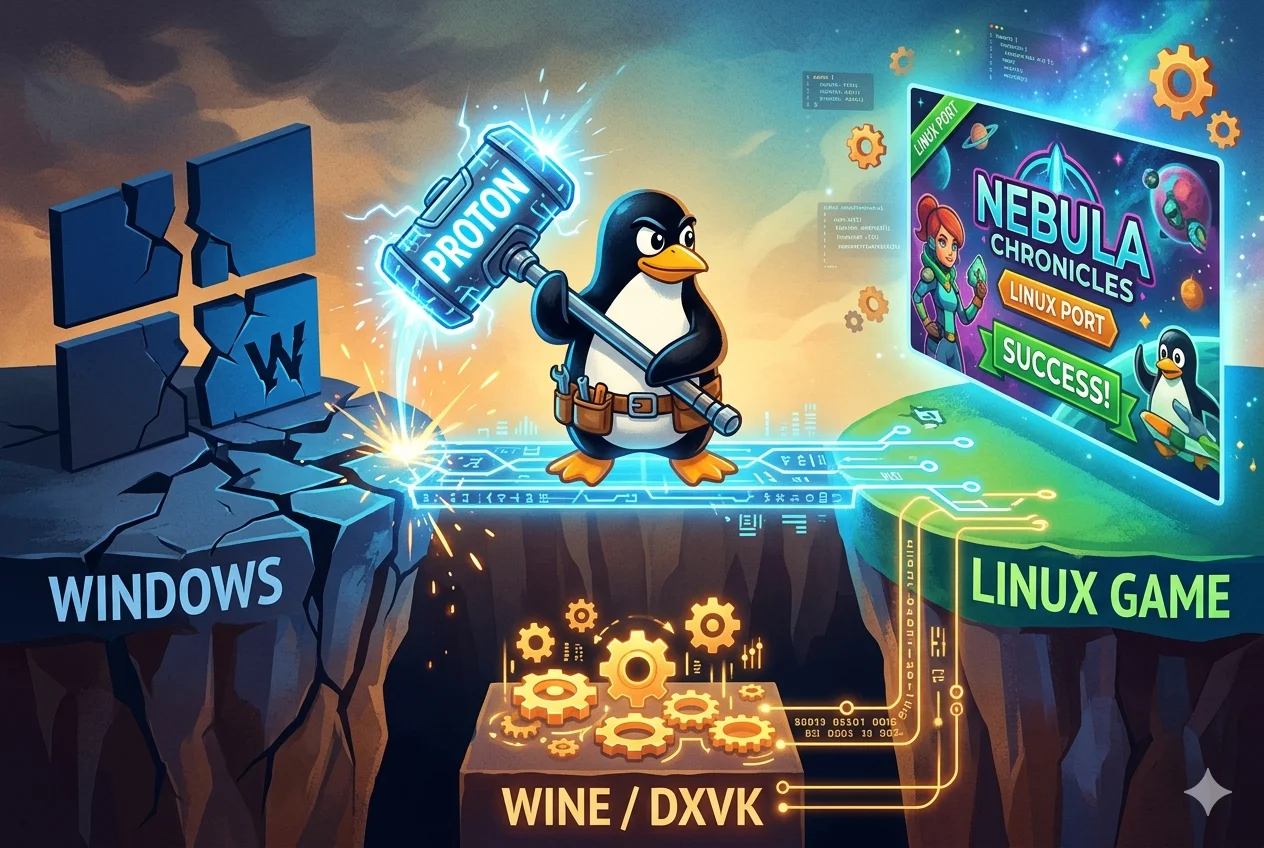
The bridge between Windows-centric games and Linux is built on compatibility layers like Wine and Proton. Steam has revolutionized this space with Proton, a tool that allows Windows games to run directly within the Steam client with almost no configuration.
To get the most out of Steam, enable “Steam Play for all other titles” in the settings menu. This allows you to test games that haven’t been officially verified yet. For titles outside of Steam, tools like Lutris or Bottles act as central hubs. They manage different versions of Wine and apply game-specific scripts to ensure everything from dependencies to environment variables is handled automatically.
Using GE-Proton (GloriousEggroll) is another popular tip for intermediate users. This community-maintained version of Proton often includes experimental fixes for video playback and performance bugs that haven’t made it into the official Valve releases yet.
In-Game Settings and Performance Tuning
Even with a perfectly tuned OS, in-game settings play a massive role in maintaining a high frame rate. When gaming on Linux smoothly, the goal is to leverage the Vulkan API whenever possible. Vulkan is more efficient than older DirectX versions and maps more natively to Linux graphics drivers.
If a game feels sluggish, check if it is running through a translation layer like DXVK (DirectX 9/10/11 to Vulkan) or vkd3d-proton (DirectX 12 to Vulkan). You can often monitor this by using environment variables to display an on-screen overlay.
Lowering specific settings like shadows, volumetric clouds, and ambient occlusion can provide a significant FPS boost without ruining the visual aesthetic. Furthermore, many modern Linux setups support FSR (FidelityFX Super Resolution), which upscales lower-resolution images to your monitor’s native resolution, drastically improving performance on mid-range hardware.
Cooling, Power Profiles, and Background Processes
Hardware throttling is a common enemy of consistent performance. If your CPU or GPU gets too hot, it will automatically lower its clock speed to protect itself, causing your frame rate to drop. Ensuring your cooling system is clean and your fan curves are aggressive enough is a prerequisite for long gaming sessions.
On the software side, many Linux desktops default to a “Balanced” power profile. You should switch this to “Performance” mode when gaming. Tools like GameMode, developed by Feral Interactive, can do this automatically. When a game launches, GameMode tells the OS to:
-
Prioritize the game process in the CPU scheduler.
-
Disable power-saving features that might limit GPU speed.
-
Suppress screen savers or background updates.
Reducing input lag Linux gaming setups often involves closing unnecessary background browser tabs or Electron-based apps like Discord if you are on a system with limited RAM. These apps can consume significant CPU cycles that would be better spent on the game’s physics engine.
Benchmarking and Monitoring Tools
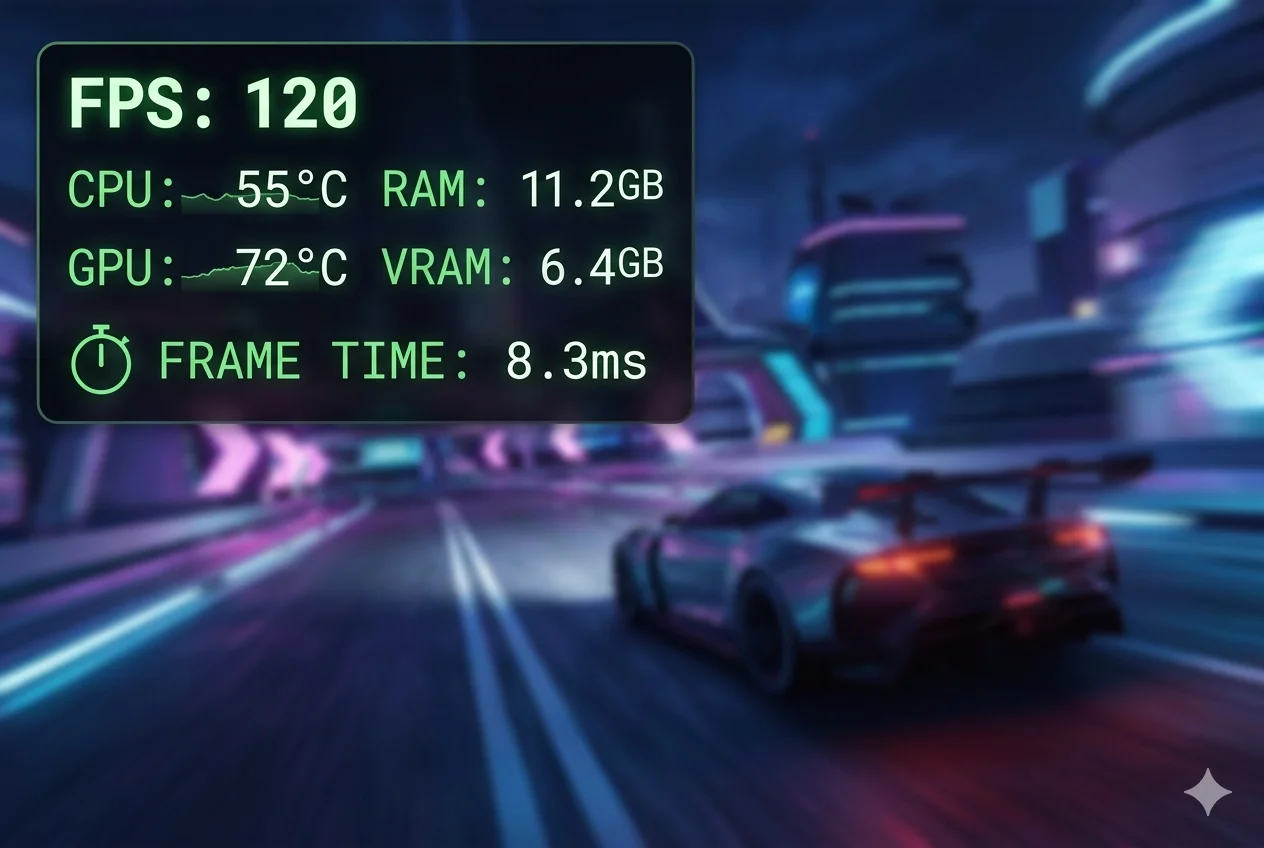
To know if your optimizations are working, you need data. Mangohud is the gold standard for monitoring Linux gaming performance. It provides an overlay that shows FPS, frame timings, CPU/GPU temperatures, and RAM usage in real-time.
By looking at the frame time graph provided by Mangohud, you can identify if stutters are caused by “shader compilation.” This is a common issue where the game stutters the first time it renders a new effect. Most modern drivers and Steam versions now pre-cache these shaders, but monitoring the logs can help you troubleshoot if a specific game is underperforming.
For pure synthetic benchmarking, tools like GFXBench or the Unigine series (Heaven, Valley, Superposition) provide consistent environments to test your hardware’s limits. Running these before and after applying tweaks will give you a clear picture of your performance gains.
Conclusion
Optimizing Linux for gaming is a rewarding process that combines technical precision with a passion for performance. By selecting a modern distribution, maintaining updated drivers, and utilizing tools like GameMode and Proton, you can achieve a Linux gaming setup that rivals any other platform. Remember that every hardware configuration is unique, so testing different kernels and compatibility versions is key to finding your ideal balance. Start with the basics of driver updates and power profiles, and you will see immediate improvements in how your favorite titles perform.
Disclaimer: Optimizing system-level components like the Linux kernel and graphics drivers involves modifying core OS settings. While these steps are designed to improve performance, results may vary based on your specific hardware configuration. Always ensure you have a verified backup of your data before making significant system changes. AuditFutures is not responsible for any data loss or hardware issues resulting from these technical modifications.